Scheduling LinkedIn posts separates content creation from content distribution — so you can write when you're inspired and publish when your audience is actually online. Here's every method, step by step.
The moment you finish writing a LinkedIn post is usually the worst possible time to publish it. Most people write when they have time (late evenings, early mornings, weekend gaps) but their audience is scrolling LinkedIn on Tuesday at 9 AM. Scheduling fixes this disconnect.
According to Buffer's data, LinkedIn is now the strongest platform for organic engagement, with a median rate of 8%. That number isn't built on viral moments, it's built on showing up regularly when people are actually online. Scheduling posts in advance also removes the daily mental overhead of deciding what to post. When content is planned and queued, the decision is already made.
LinkedIn's native scheduler is free, requires no third-party access, and works for both personal profiles and company pages. It's built directly into the post composer.

You can schedule up to 90 days in advance.
Text posts, single images, videos, polls, and link previews. You can tag people and companies, and schedule posts to company pages you manage as an admin.
PDF carousels (LinkedIn's most engaging post format) cannot be scheduled natively. There's no bulk scheduling, no calendar view to see all upcoming posts at once, and no post preview showing how your content will actually render. You also can't edit a scheduled post directly; you have to delete and recreate it, which is frustrating when you spot a typo after scheduling.
If you post once or twice a week and don't use carousels, the native scheduler is good enough. If you're managing multiple posts, planning weeks ahead, or relying on carousels, you'll hit its limits quickly. Here's how to view and manage your scheduled posts on LinkedIn once they're queued.
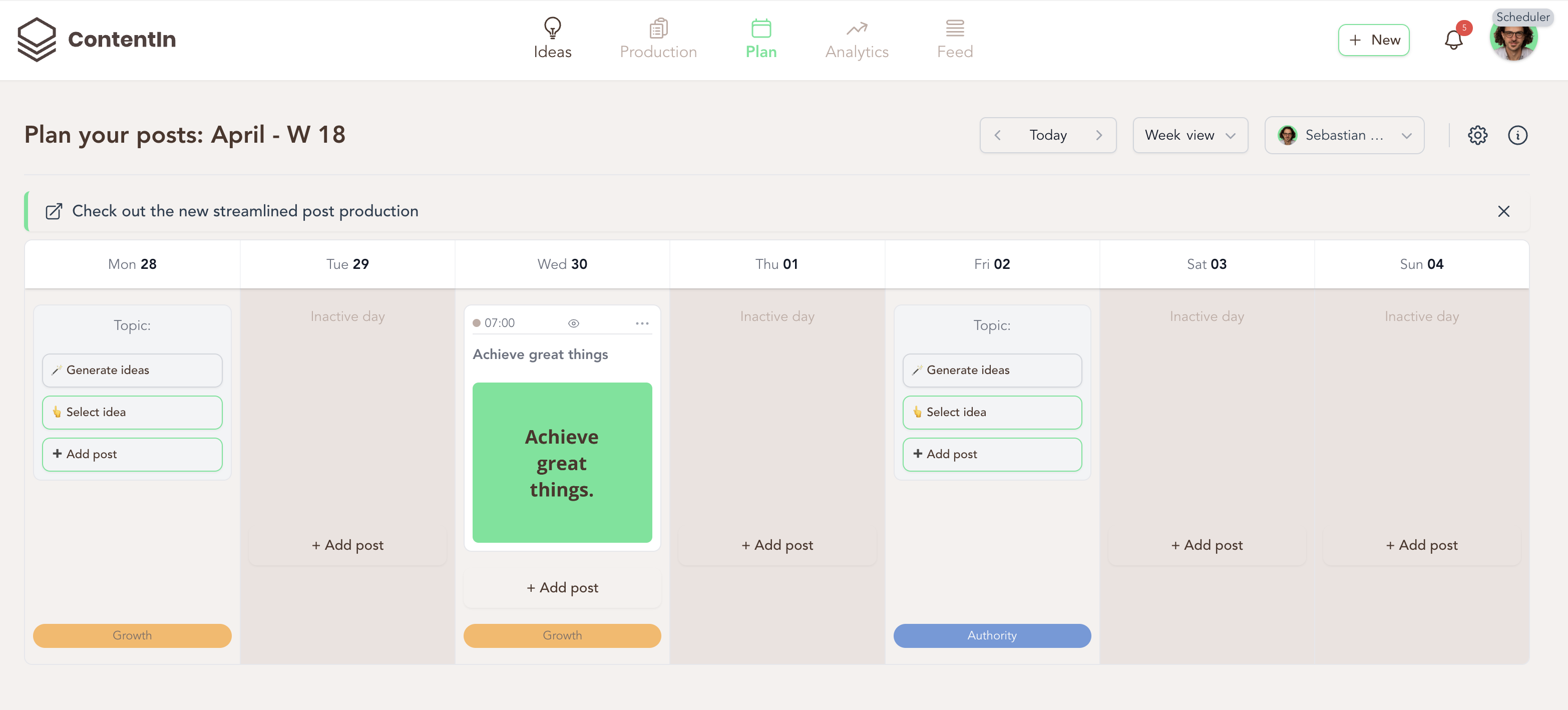
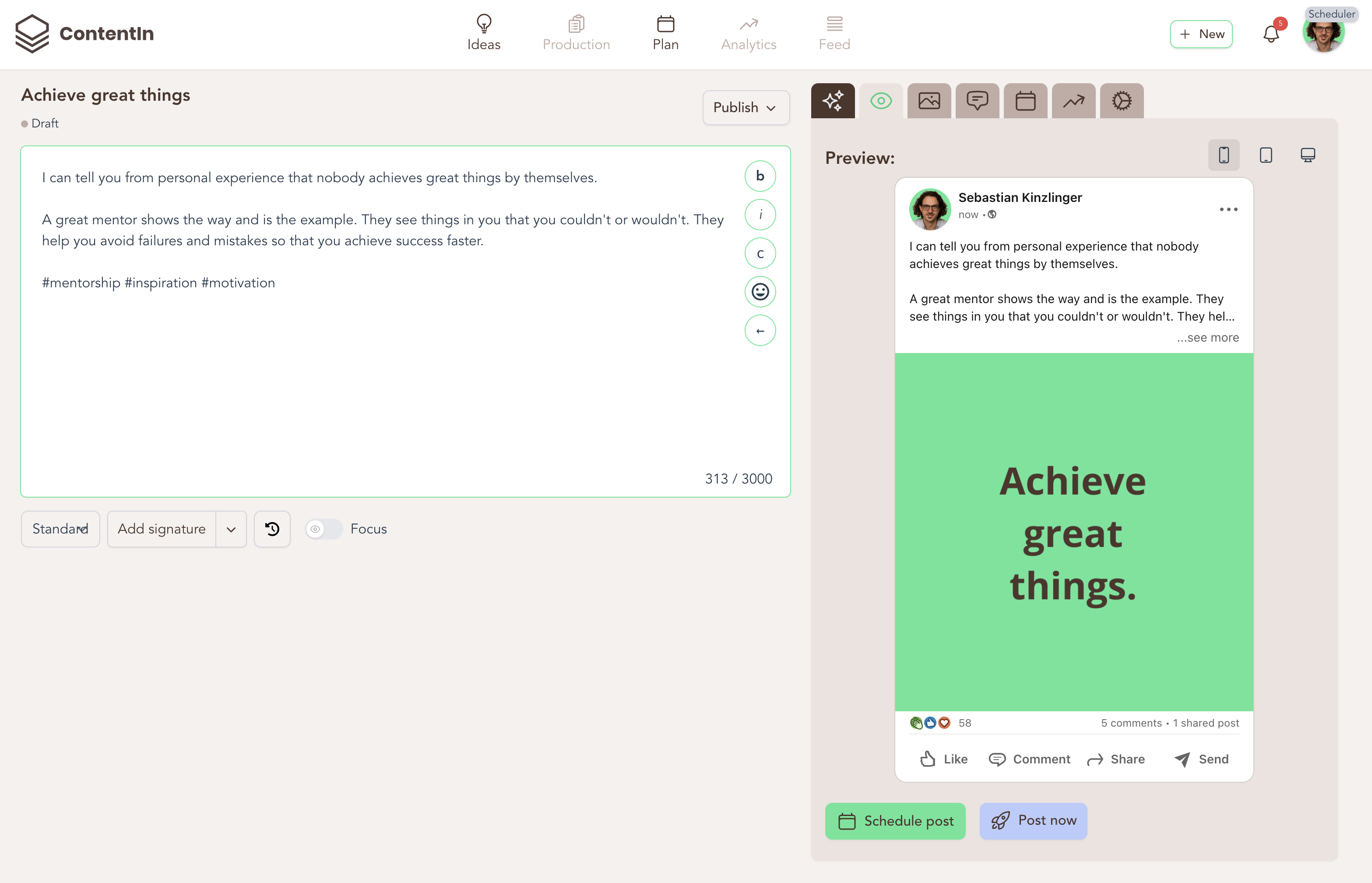
Third-party schedulers exist because LinkedIn's native tool doesn't cover what most creators actually need: calendar visibility, carousel support, post previews, and bulk scheduling. ContentIn's free LinkedIn scheduler includes all of these with no credit card required and no limit on scheduled posts.

Seeing your entire content pipeline laid out visually makes it easy to spot gaps, avoid topic repetition, and balance different post formats across the week. Scheduling posts in isolation (one at a time without a calendar) often leads to unintentional clusters of similar content followed by long silences. The calendar makes that pattern visible before it happens.
ContentIn also supports bulk scheduling via CSV upload, which is useful for quarterly content planning or campaigns with fixed messaging. Upload multiple posts at once with dates and times pre-assigned, and the entire schedule is set in one session.
For company page scheduling specifics, this guide on scheduling LinkedIn company page posts covers the setup in detail.
Use LinkedIn's native scheduler if you post once or twice a week, don't use carousels, and want zero setup. It's free and sufficient for occasional posting.
Use a third-party tool like ContentIn if you post two or more times per week, rely on carousels, manage a company page alongside a personal profile, or want a calendar view of your content. The free plan covers everything most creators need.
PDF carousels consistently outperform single-image posts on LinkedIn, the swipe interaction signals strong engagement to the algorithm and pushes reach higher. But LinkedIn's native scheduler doesn't support them. The only way to schedule a carousel post in advance is with a third-party tool.
To schedule a carousel with ContentIn:
If carousels are a regular part of your content strategy, this limitation alone makes the native scheduler insufficient.
LinkedIn's mobile app includes the native scheduler and works well for quick posts away from a computer. The steps are the same as desktop, tap the post icon, write your content, tap the three dots, select Schedule post, and set your time.
The mobile scheduler has the same limitations as desktop: no carousels, no bulk uploads, no calendar view. Most creators do their scheduling on desktop where previews, calendar management, and larger screens make the workflow faster. Mobile scheduling is most useful for quick additions or last-minute changes to an existing schedule.
No. This myth persists because people confuse the publishing method with content performance. LinkedIn's algorithm doesn't penalise scheduled posts. Richard van der Blom, who has analysed millions of LinkedIn posts, has confirmed the platform treats a scheduled post identically to one published manually.
What actually affects reach:
The only way scheduling can hurt reach is by publishing at the wrong time, but that's a timing problem, not a scheduling problem.

Tuesday through Thursday consistently outperform other days. Monday is hit-or-miss as people catch up on work. Friday engagement drops off as the week winds down.
The strongest time windows are 8–10 AM and 12–2 PM in your audience's timezone. These align with when professionals check LinkedIn before deep work sessions or during lunch breaks.
These are starting points, not fixed rules. If your audience skews toward US executives, 8 AM EST works well. If you're reaching European marketers, the right window shifts. The most reliable approach is to schedule posts at different times for a few weeks and track which slots consistently generate strong engagement in the first hour after publishing,, that early window is what drives broader reach.
For a full breakdown of timing by audience type and content format, see the complete guide to the best time to post on LinkedIn. If you're managing a global audience, this guide on scheduling across time zones covers how to handle multiple regions without losing performance.
Not with LinkedIn's native scheduler, posts must be scheduled one at a time. Third-party tools like ContentIn support bulk scheduling via CSV upload, letting you schedule an entire week or month of posts in a single session.
Yes. Both LinkedIn's native scheduler and third-party tools support company page scheduling, provided you're an admin of the page. In the native composer, a dropdown lets you choose between your personal profile and any company pages you manage.
LinkedIn's native scheduler limits you to 90 days. Third-party schedulers like ContentIn have no cap, you can schedule months or more in advance for long-term campaigns.
Not directly with the native scheduler. To make changes, you have to delete the scheduled post and recreate it. ContentIn lets you edit scheduled posts directly from the calendar without losing your slot.
Scheduling LinkedIn posts isn't about automating your way to engagement. It's about separating content creation from content distribution so you can do both better: write during focused creative sessions, publish when your audience is paying attention.
If you're still manually posting everything, try batching a week's worth of content in one sitting, scheduling it strategically, and tracking whether your consistency and engagement improve. For most creators, the combination of better timing and reduced daily friction makes a measurable difference within the first few weeks.
ContentIn's free LinkedIn scheduler is the fastest way to get started, no credit card, unlimited posts, calendar view, and full carousel support included.
Use ContentIn's AI Ghostwriter to write posts that resonate with your audience and build your personal brand effortlessly.
LinkedIn Private Mode Explained: Pros, Cons, and How to Use It Strategically
Want to view LinkedIn profiles without being seen? Learn how to activate Private Mode, its benefits, limits, and best practices for strategic use.
How to Create a LinkedIn Company Page Without a Personal Profile: Can It Really Be Done?
Wondering how to create a LinkedIn business page without a personal profile? Learn if it’s possible, why LinkedIn requires it, and the smart workarounds.
How to Create a Company Page on LinkedIn Mobile: Why It Works Better Than Desktop
Setting up a LinkedIn company page from your phone may sound controversial but believe it or not, it saves time, amplifies engagement and overall works better than desktop. Here’s why.
LinkedIn Shorts: Why Video Is Your New Best Friend for Professional Growth
Master LinkedIn Shorts and turn quick, authentic videos into powerful marketing tools that skyrocket your professional brand.