Step-by-step guide to schedule posts on a LinkedIn company page, with workflow tips, timing tactics and smart checks to keep your content timely, human and effective.
Are you used to posting on LinkedIn at random times hoping someone will notice? If this sounds familiar, you must know there's actually a method to this madness.
LinkedIn has become way more than just a place to update your job title. It's turned into a serious tool that actually brings in leads - if you know how to use it right. But most people are just throwing content at the wall and hoping something sticks. Scheduling LinkedIn content saves time and keeps your company page consistent.
This article explains the simplest native workflow to schedule posts on LinkedIn for a company page. If you're looking for a full walkthrough of all scheduling methods including personal profiles, carousels, and mobile, see the complete guide to scheduling LinkedIn posts.
You can schedule posts directly from LinkedIn using the page composer. This is fine for occasional posts and solo managers. If you need bulk uploads, approvals, recurring posts or the ability to edit content after scheduling, a third-party scheduler will serve you better.
Sign in and open your company page.
Click Start a post and write your post, add images, video or a link.
Click the small clock icon next to the Post button and choose date and time. LinkedIn’s native tool currently allows scheduling up to three months in advance.
Click Next, review and Schedule. To see scheduled posts, open the composer again and select View all scheduled posts.
Important limitation to note: After you schedule a post using LinkedIn’s native scheduler you can reschedule or delete it, but you cannot change the post content. If you need to change the text, images or video you must delete the scheduled item and create a new one. Plan ahead for this.

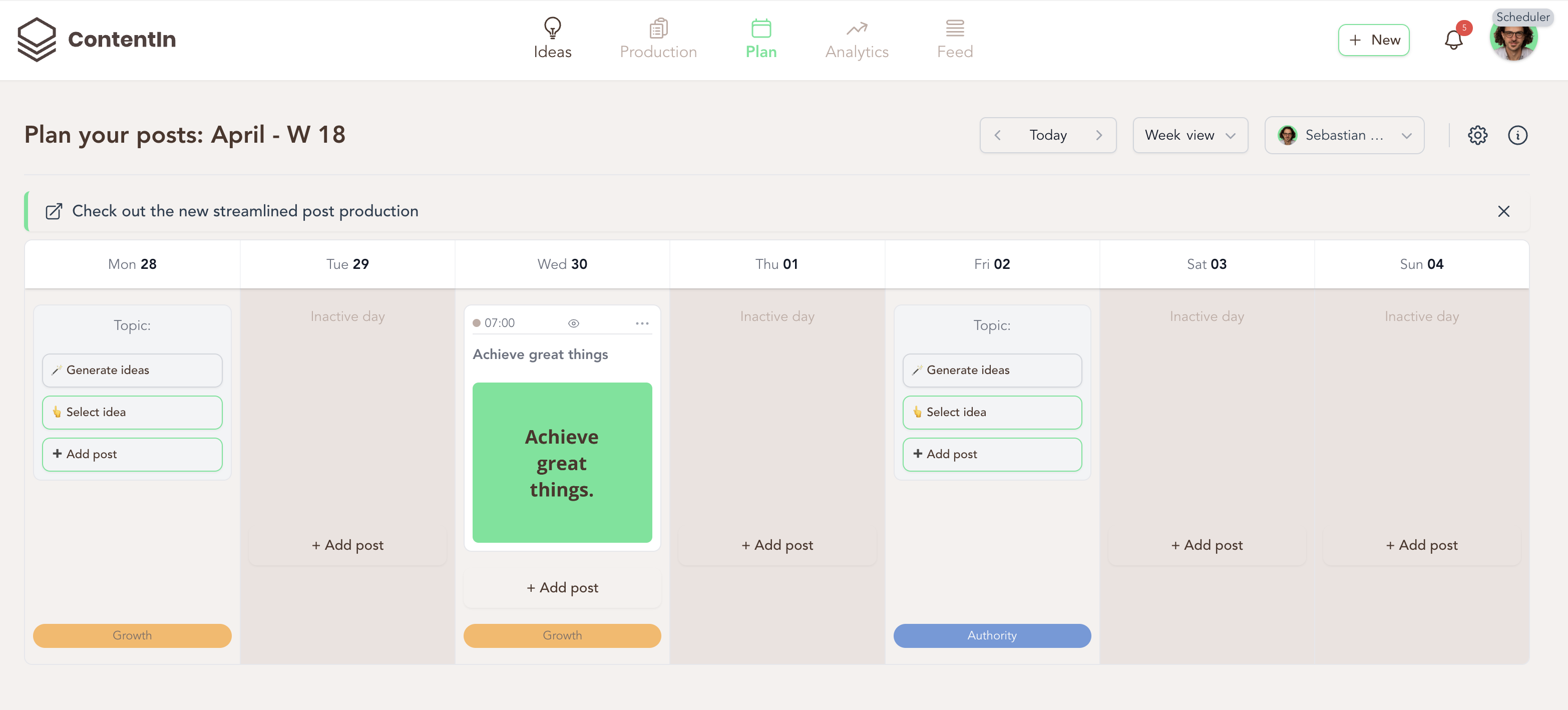
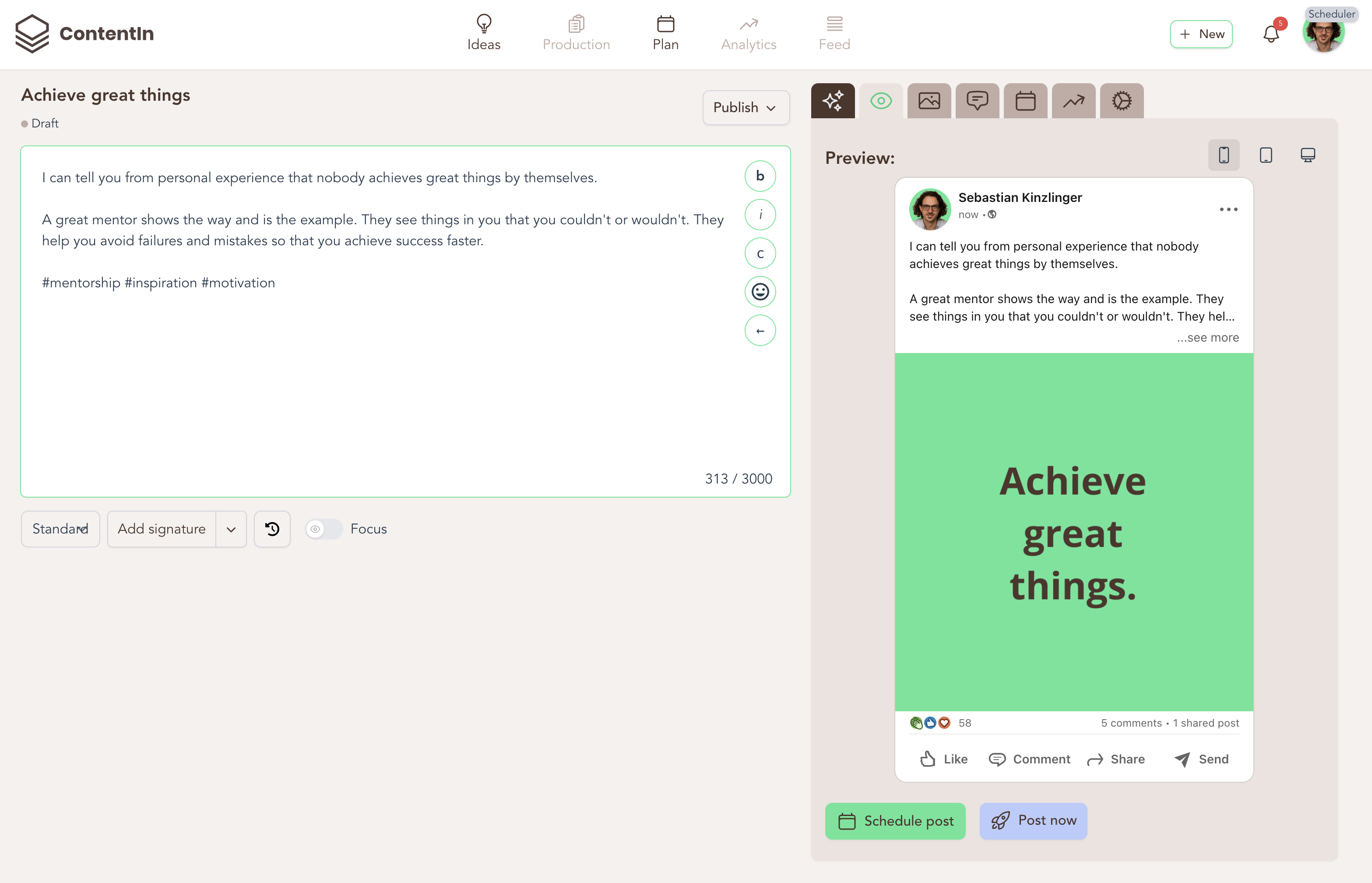
If you want a LinkedIn scheduler that was built specifically for LinkedIn users rather than as an afterthought, ContentIn combines a calendar-first scheduler and post previewer with LinkedIn-focused features such as templates and an AI writing assistant, so you can plan weeks of content, see exactly how posts will look, and create a copy that fits the platform and your voice.
ContentIn offers a free LinkedIn scheduler for basic needs and paid plans that unlock advanced capabilities for teams and power users.
This is particularly useful when you need more than a single person posting once in a while.
Use it when you want a visual calendar to organize company page content, a library of proven templates to speed up writing, and AI help that adapts to your tone so your scheduled posts do not sound like templates.
For teams, ContentIn supports planning at scale and includes features such as bulk uploads and scheduling workflows that reduce manual work and approval friction.
ContentIn also helps you act on what matters after a post goes live. The platform offers analytics and LinkedIn-specific insights through its tools and browser extension, so you can spot what types of posts gain traction and refine your schedule and formats accordingly.
Professional people don't just randomly scroll LinkedIn like they do Instagram. They check it during specific moments in their workday, and if you can figure out when those moments are, you're golden.
Most professional users consume content during predictable moments throughout their workday - coffee breaks, that weird 10-minute gap between meetings, or when they're procrastinating on a big project. When you schedule LinkedIn posts around these moments, you're working with human psychology instead of against it.
Coffee breaks, commute transitions, and those brief pauses between meetings - these are your golden opportunities. But here's the thing: every industry is different. Finance people have different rhythms than healthcare workers or tech executives.
The timing game has changed a lot recently too. According to optimal posting times for maximum engagement, the sweet spots have shifted significantly.
Recent research from Sprout Social's analysis of 2.5 billion engagements shows that Thursdays now have "the heaviest concentration of optimal post time engagement compared to any other day of the week" during 9 a.m. to 1 p.m. windows.
Before you start optimizing, just look at what's already working. Check your LinkedIn analytics for the past few months and ask yourself: Which posts got the most likes? What time did I publish them? Were people actually clicking through to my website, or just hitting 'like' and scrolling on?
One quick way to build this picture: extract the exact publication dates of your past posts using their URLs. LinkedIn only shows relative timestamps in the interface, but the precise date and time is encoded in every post URL — which means you can correlate exact timing with performance data instead of guessing.
What to Check |
Where to Find It |
How Far Back to Look |
What Actually Matters |
Post Performance |
LinkedIn Analytics |
90 days |
Engagement rate, reach, clicks (not just likes) |
When People Are Active |
Native insights |
30 days |
Peak activity hours, who's actually there |
What Competitors Do |
Competitor analysis |
60 days |
When they post, how often, what works |
What Your Audience Says |
Just ask them |
Ongoing |
When they actually check LinkedIn, what they want to see |
If your business works with people across different time zones, things get complicated fast. Smart businesses create content that flows naturally across time zones, treating their global audience like interconnected markets instead of completely separate groups.

For businesses managing global audiences, scheduling across time zones effectively requires understanding both the technical side and cultural differences in how people consume professional content.
Keep a healthy mix of scheduled and live posts. Real time content signals that your page is active and responsive, and it helps you react to industry news or trending topics.
Use scheduling to publish at the right time, not at the only time. Tools often include “best time” recommendations based on your audience. Run simple A/B tests to find the hours your followers actually engage.
Test mentions and tags before you schedule at scale. APIs and platform rules sometimes limit how mentions behave when posted from external apps. If precise tagging is mission critical, create one test post or publish natively.
Add UTM parameters to links. Schedule posts with UTM tags so you can measure traffic from each campaign in Google Analytics.
Save multi-line formatting, emojis and long paragraphs in a content bank. LinkedIn displays more cleanly if you prepare and preview text before scheduling.
You cannot edit post content once it is scheduled natively. The safe route is to schedule only after final approvals, or use a scheduler that supports edits.
Some post types are not supported by LinkedIn’s native scheduler. Events, jobs and certain specialized formats may require manual posting or a tool that supports them.
Cross-posting from other networks works, but posts should be adapted for LinkedIn’s professional tone. Plain duplication can reduce performance.

Most LinkedIn users get frustrated trying to track and manage their scheduled content because the platform's interface isn't exactly intuitive.
Click "Start a post" on your LinkedIn homepage
Look for the clock icon in the lower-left corner
Click "View all scheduled posts" to see your queue
Use the calendar view to manage posting dates
Click the three dots on any post for edit options
Set up notifications so you know when posts go live
For detailed step-by-step guidance, the guide on viewing scheduled posts on LinkedIn covers all the navigation details most users miss.
Good LinkedIn scheduling isn't about having the perfect system or the fanciest tools. It's about showing up consistently when your audience is paying attention, with content that actually matters to them.
Start by posting consistently at the same time each day. Pay attention to what gets actual responses (not just likes). Then gradually try some of these more advanced techniques. Your future self (and your lead generation numbers) will thank you.
Use ContentIn's AI Ghostwriter to write posts that resonate with your audience and build your personal brand effortlessly.
Do LinkedIn Hashtags Still Work in 2026? A Data-Backed Breakdown
Wondering if LinkedIn hashtags still matter in 2026? Discover fresh data, real test results, and the new rules that determine whether hashtags boost or bury your reach.
33 Top LinkedIn Hashtags by Industry That Actually Drive Business Results
Explore the top LinkedIn hashtags proven to perform in 2026. A data-backed list of 33 industry-specific tags that help you reach the right audience.
The LinkedIn Content Grind Is Broken (For Founders)
Let's be honest: most LinkedIn advice comes from full-time creators who spend 4+ hours daily on the platform. That's their job. But if you're a founder running an actual business? That playbook will burn you out fast.
LinkedIn Algorithm 2025: The Complete Content Format Strategy Guide
Carousels get four times more reach. Videos crashed 35%. And that simple image you're ignoring? It might be your best bet. Here's the thing most founders get wrong: they pick formats randomly. They see someone's carousel go viral and think, "I need to make carousels." They see a meme and think, "I need to make memes." But format selection isn't about copying. It's about strategy.