
How to Add Testimonials to LinkedIn Posts
Posts with testimonials see 180% more comments on LinkedIn—here's how to add them effectively and turn social proof into engagement.
Want to boost your LinkedIn posts? Add testimonials. Testimonials build trust, increase engagement, and improve conversions by showcasing real results. Here's how:
- Why testimonials matter: 92.4% of people trust reviews, and posts with testimonials see up to 180% more comments.
- Best formats: Use text quotes, LinkedIn's recommendation tools, or visual carousels to make testimonials pop.
- Placement tips: Start posts with testimonials, weave them into stories, or place them near CTAs for higher engagement.
- Tools to help: Platforms like ContentIn or Trustmary simplify creating, sharing, and tracking testimonials.
Start using testimonials to make your LinkedIn posts stand out and drive results.
Testimonial Formatting Methods
Basic Text Methods
Text-based testimonials are simple yet effective. Use quotation marks and italicized attribution to make them stand out. For example:
"This transformed our lead gen strategy" - Sarah K., Marketing Director
Keep testimonials short - under 50 words - for better readability. To separate multiple quotes, use visual dividers like emojis (💬) to improve clarity [4].
"Increased our conversion rate by 45% in just 3 months" - David Chen, Growth Lead at TechCorp 💬 "Streamlined our entire sales process" - Maria Rodriguez, Sales Director at StartupX [3][5]
LinkedIn's Built-in Tools
LinkedIn provides native features to showcase testimonials effectively. Here's how you can use them:
-
Request Recommendations: Go to your profile, click on "Recommendations", and use the "Ask" button to request endorsements from colleagues or clients [4].
-
Share in Posts: While creating a post, click "Add document" and select the "Recommendations" tab. This lets you share approved testimonials as interactive cards [8]. Add a personal touch when sharing, such as:
Honored to receive this recognition from [Name] for our recent project that delivered [specific result].
Creating Visual Testimonials
Visual testimonials, like carousels, can boost engagement significantly - up to 3x more than plain text posts [10]. Follow these LinkedIn specs for optimal results:
| Element | Specification |
|---|---|
| Image Size | 1200 x 627 pixels |
| File Type | PNG/JPG (max 8MB) |
| Text Coverage | No more than 20% |
| Font Size | At least 24pt for mobile |
To create standout carousels:
- Testimonial Slides: Use customer headshots and branded templates with consistent colors and fonts to maintain a polished look.
- Call-to-Action: End with a clear message that connects the testimonials to your value proposition.
Tools like Senja's Chrome extension make it easy to design professional visuals. You can choose templates, apply your brand colors, and export images that meet LinkedIn's requirements [1].
Once your testimonials are ready, placing them strategically in your LinkedIn posts ensures maximum impact.
Where to Place Testimonials in Posts
Opening with Strong Hooks
Placing testimonials at the start of your LinkedIn posts can boost engagement by up to 28% [9]. Pairing quotes with profile photos taps into LinkedIn's visual appeal and grabs attention right away. Here's an example:
"Our sales team closed 40% more deals within 90 days of implementing the new strategy" - Mark Thompson, VP of Sales at TechGrowth [4]
Add a quick explanation afterward that connects the testimonial to your audience's needs. This approach hooks readers and makes them want to keep scrolling.
Blending Testimonials into Stories
Incorporate testimonials into stories by highlighting challenges, solutions, and results. Keep quotes short - 1-2 sentences for every 150 words [2][7]. Use indented blocks to make client quotes stand out visually:
"Within three months, our team retention improved by 30% after implementing these changes" - Jennifer Chen, HR Director at InnovateX [2]
This storytelling method adds depth while keeping the focus on your message.
Testimonials Next to Action Steps
Place testimonials near calls-to-action (CTAs) to increase interaction. Keep testimonials concise - around 50 words - to fit mobile-friendly designs effectively.
| Placement | Impact |
|---|---|
| Above CTA | +28% engagement increase |
| Beside CTA | +37% click-through rate |
| Below CTA | +19% engagement increase |
Now that you know where to position testimonials, let’s dive into tools that make integrating them easier.
Tools for Adding Testimonials
ContentIn: LinkedIn Post Creation
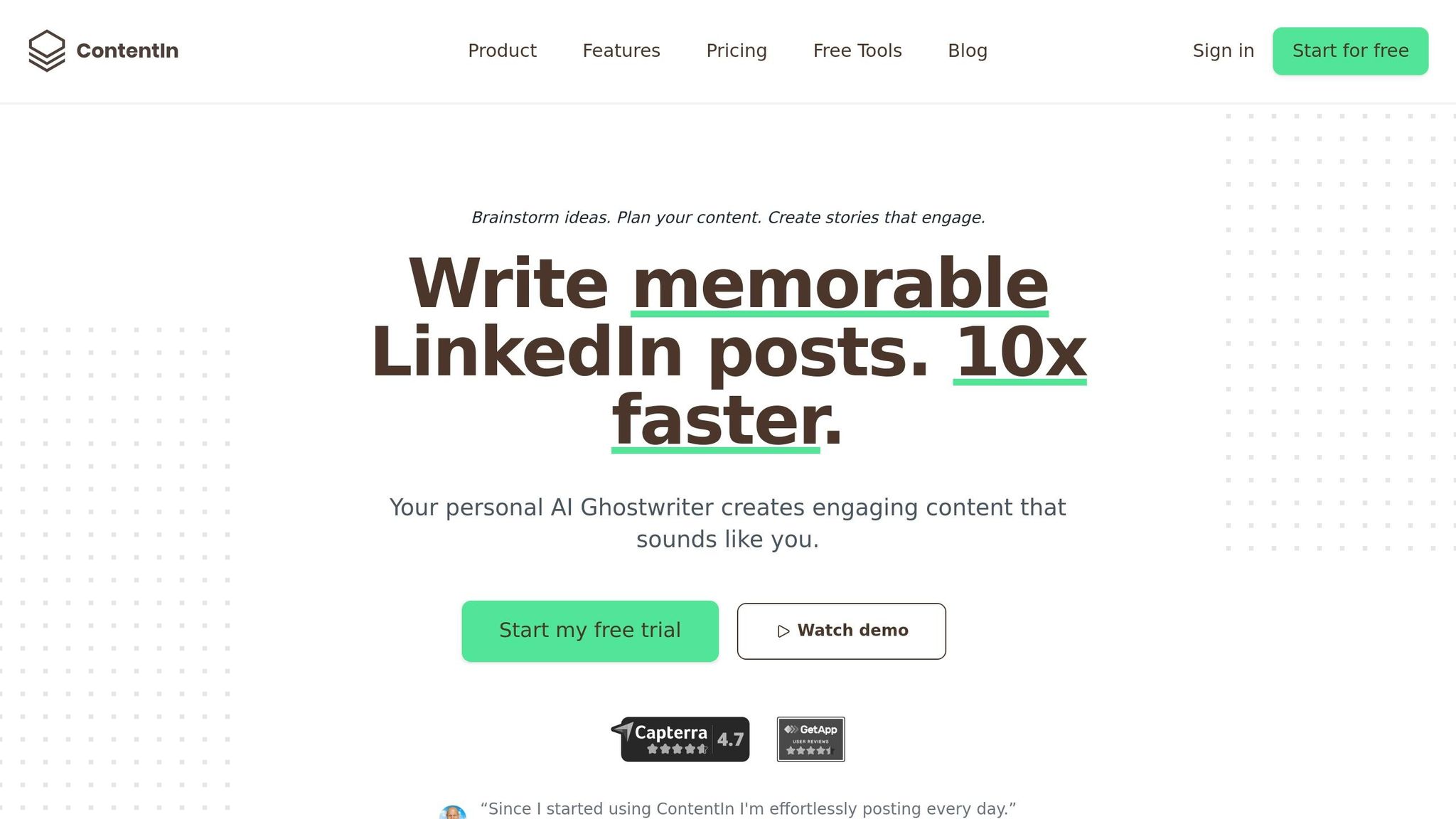
ContentIn helps you save 4-7 hours each week by using its AI Ghostwriter to craft testimonial posts that match your personal writing style. It also offers a variety of viral templates specifically designed for testimonial posts to help increase engagement. Plus, you can schedule posts and monitor performance metrics to fine-tune your testimonial strategy [article context].
| Feature | What It Does |
|---|---|
| Writes in your voice | Keeps your unique writing style intact |
| Testimonial templates | Ready-made layouts for better results |
| Performance tracking | Monitors how your testimonials perform |
| Auto-publishing | Simplifies the posting process |
Additional Testimonial Software
Tools like Trustmary can add verified trust badges to testimonials, while Smartsheet minimizes formatting mistakes by 32% with its collaborative proofing features [3][7].
With these tools handling the technical side, you can focus entirely on creating high-quality testimonials.
How to Use Client Testimonials in LinkedIn Content Effectively

Maintaining Testimonial Quality
Once you've added testimonials to your LinkedIn posts, keeping them authentic and impactful is key. Regular quality checks help ensure they continue to resonate, especially when highlighting measurable outcomes.
Verifying Testimonial Sources
To make sure your testimonials are genuine, follow these steps:
- Confirm identities by reviewing profile history and mutual connections.
- Validate results using relevant project data.
- Obtain written consent via email to clarify terms of use.
For external testimonials, it's important to secure written permission after a verbal agreement, clearly outlining how the testimonial will be used [7].
"Results may vary" disclaimers are required for any claims about performance [12].
Store written permissions for at least three years to stay on the safe side.
Ensuring Proper Post Display
Before publishing, test how your testimonial posts look across devices to maintain their effectiveness.
Key Testing Steps:
Every three months, review these elements:
- Remove any testimonials that are no longer relevant.
- Ensure the formatting is consistent across posts.
Interesting fact: Placing testimonials at the top of your post can boost engagement by 40% compared to placing them at the bottom [10]. Use analytics tools from your chosen testimonial platform to make this process easier.
If issues arise, here’s a simple plan to handle them:
- Reach out to the testimonial provider within 24 hours.
- Offer to remove the testimonial immediately if requested [5].
Conclusion: Tips for LinkedIn Testimonials
Key Takeaways
To create effective LinkedIn testimonials, focus on being specific and results-oriented. Use this formula: Clear metrics, Relevant skills, Proper attribution, Recent examples, and Defined goals [2].
A good testimonial approach should include:
- Verified information with proper attribution
- Posting testimonials early for visibility
- Regular updates with fresh content
How to Get Started
Start by reviewing your current recommendations using G2's review guidelines [2]. This will help you spot areas for improvement and ensure your testimonials align with LinkedIn's best practices.
Leverage LinkedIn's recommendation feature by giving genuine endorsements to your colleagues first. This increases your chances of receiving quality testimonials by 40% [6]. When asking for recommendations, mention specific projects you worked on together and even provide draft suggestions to make it easier for them [6].
Make it a habit to review your testimonials every quarter. Remove outdated ones and add new, relevant ones. Keep an eye on profile views and connection requests to gauge the effectiveness of your testimonials. Tools like ContentIn's analytics can help you track these metrics and fine-tune your strategy.
FAQs
What do you say when posting a testimonial?
When sharing testimonials, focus on presenting them as client success stories with measurable results instead of self-promotion. Here's how:
"Thrilled to help ABC Tech achieve 150% sales growth last quarter through our tailored strategy! 🚀" [4][7]
Highlight the client’s journey and results: Shift the spotlight to your client’s achievements rather than your own. Share how your work contributed to their success. [4][7]
Show genuine appreciation: Express gratitude while keeping it professional. For example:
"Honored to receive this feedback from..."
"Grateful for the opportunity to collaborate with..."
"Humbled by these kind words from..." [7][5]
Use specific metrics: Include numbers or measurable outcomes to give your testimonials more impact. For instance:
"Sarah Chen, CEO of TechStart, saw a 40% increase in qualified leads within 3 months of implementation through our LinkedIn optimization strategy." [13][7]
Get permission first: Always ask for written approval before sharing someone’s feedback. A simple request like this works:
"May we share your feedback about [result] in a post?" [4][10]
Create Engaging LinkedIn Content
Use ContentIn's AI Ghostwriter to write posts that resonate with your audience and build your personal brand effortlessly.